The camera card is full of photos from a weekend away, and the files need to move onto the phone before the next call, without a laptop in the middle. Learning how to use sd card reader on iphone comes down to a short chain: plug a reader into the phone, slide the card into the reader, open Photos or Files, and move the files across. The steps below cover USB-C and Lightning models, the two apps that handle the transfer, and what to check when a card does not appear.
OfficeKitHQ earns a commission when you buy through links on this page, at no extra cost to you. As an Amazon Associate I earn from qualifying purchases. Affiliate disclosure.
How to use SD card reader on iPhone: the quick answer
Plug the reader into the charging port, insert the SD card, then open Photos and look for Import, or open Files and look for the card under Locations. Photos handles pictures and video, while Files handles documents and folders, and both apps move files in either direction when the reader supports two-way transfer. Readers need no driver and no extra app: the listings describe them as plug and play, and the phone supplies the rest.
Which reader fits which iPhone
Apple switched the iPhone charging port to USB-C with the iPhone 15 line, so the port on the phone decides the reader. Listings for USB-C readers state plainly that they do not work with Lightning ports.
| iPhone model | Port on the phone | Reader to use |
|---|---|---|
| iPhone 15, iPhone 16, iPhone 17 | USB-C | A USB-C reader |
| iPhone with a Lightning port | Lightning | A Lightning reader, or a reader with a detachable Lightning adapter |
Step 1: Match the reader to the port
Look at the charging port on the phone before buying or borrowing a reader. iPhone 15, iPhone 16 and iPhone 17 use USB-C, while earlier models use Lightning, and a reader built for one port will not fit the other. The Acer listing states that its USB-C reader is not compatible with Lightning port devices, and the uni listing carries the same warning. The SZHAIYIJIN listing describes a dual-connector reader with a detachable Lightning adapter for households with both port types. Check the case as well: a thick case may block full insertion, and the Anker listing advises removing the case before using the reader.
Step 2: Put the card in the reader
Match the card to the slot. A full-size SD card goes in the SD slot, and a microSD card, also called a TF card, goes in the microSD slot. Most readers in the listings carry both slots, so one reader covers camera cards and cards from a drone, a dash cam or an action cam. Insert the card with the label facing up and push it gently until it seats; a card that sticks out at an angle is not seated, and the phone will not see it. Some readers handle more than one card at a time: the BENFEI listing states that its reader can read 4 cards at the same moment, while the Wansurs listing states that its reader does not support SD cards and microSD cards working simultaneously.
Step 3: Connect the reader and open Photos or Files
Plug the reader into the phone with the card already seated, then wait a moment before opening an app. One listing states that the Import option appears in Photos about 5 seconds after the card is inserted and the reader is connected, so give the phone a brief pause rather than unplugging and trying again. Open Photos for pictures and video, or open Files for everything else; on an iPad, the Files app is the route the listings point to for import and export. No driver and no extra app are needed: the listings describe the readers as plug and play. The reader draws its power from the phone, and one listing states that the maximum current of connected peripherals does not exceed 500 mA, so a hard disk drive or a printer will not run from the reader.
Step 4: Import, view, and move files
In Photos, open the Import tab, look through the thumbnails on the card, and choose the shots to bring onto the phone, or import the whole set at once. In Files, the card appears under Locations: open it, browse the folders, and copy or move files between the card and the phone. The transfer runs in both directions, so photos and video can move from the card to the phone, and files can move from the phone to the card for storage elsewhere. One listing states that two-way transfer suits iOS 13 through 18, and lists Movies, Music, Word, PowerPoint, Excel and PDF among the file types that move across.
Step 5: Remove the card
Close Photos or Files before removing anything, so no transfer is still running when the card comes out. Pull the reader from the phone, then slide the card out of its slot and return it to the camera or its case. Copy rather than move when the card still needs to hold the set.
Card capacity and transfer speed
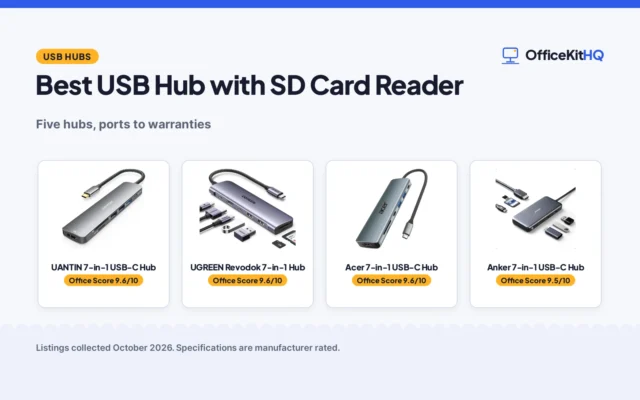
Capacity and speed come from the card and the reader together. Two listings state that their readers support cards up to 2TB, covering SD, SDHC and SDXC alongside microSD, microSDHC and microSDXC. Cards of 64GB or larger use the exFAT format, which the BENFEI listing notes is not supported by very old operating systems. Speed depends on the port and the card: several listings quote 5Gbps for a USB 3.0 connection, and the BENFEI listing quotes transfer rates up to 160MB/sec, with the final speed decided by the card and the USB slot type. Readers stay backward compatible with USB 2.0 and USB 1.1. For a desk setup, a USB hub with an SD card reader adds card slots to a computer alongside the phone reader.
When the card does not appear
- Wrong port: a USB-C reader will not fit a Lightning phone, and a Lightning reader will not fit a USB-C phone, so check the port first.
- Case in the way: a thick case may block full insertion, so remove the case and seat the reader again.
- Card not seated: push the card in until it sits flat in the slot, then reconnect the reader.
- Card format: SDXC cards of 64GB or larger use exFAT, so a card formatted for another device may need reformatting on a computer before the phone reads it.
- Unsupported card type: Wi-Fi SD cards are not supported, and some readers do not support CF, SIM, XQD or Memory Stick cards.
- Wrong app: photos appear under Import in Photos, while documents appear under Locations in Files, so try the other app before assuming the card is unreadable.
FAQ
Does an iPhone have a slot for an SD card?
No. iPhones have no card slot, so a reader that plugs into the USB-C or Lightning port is the route in. The card slides into the reader, the reader plugs into the phone, and Photos or Files handles the rest.
Is an app needed to use an SD card reader on iPhone?
No. Photos and Files are built into the phone, and the listings describe the readers as plug and play with no driver and no extra app.
Can files move from an iPhone to the SD card?
Yes, when the reader supports two-way transfer. One listing states that two-way transfer suits iOS 13 through 18, and the Files app moves documents, photos and video from the phone onto the card.
What is the largest card that works?
Two listings state that their readers support cards up to 2TB, covering SD, SDHC and SDXC alongside microSD, microSDHC and microSDXC. Cards of 64GB or larger use the exFAT format.
Why does the reader not fit with the phone case on?
A thick case may block full insertion, and the Anker listing advises removing the case before using the reader.
More for your workspace
See the best USB hubs with SD card reader, the best USB-C adapters for data transfer and the best digital voice recorders with SD card.