The monitor is on the desk, the PC is under it, and the cable between them decides what the screen can show. DisplayPort cable types differ by version, connector and length, and the wrong pick shows up as a blank screen, a refresh rate the monitor never reaches, or a plug that will not fit. This guide walks through the versions, the connectors and the lengths, so the cable you buy matches the monitor and the graphics card it joins.
OfficeKitHQ earns a commission when you buy through links on this page, at no extra cost to you. As an Amazon Associate I earn from qualifying purchases. Affiliate disclosure.
The quick answer
Check the ports on the PC and the monitor, then match the cable version to the resolution and refresh rate the monitor runs. A full-size DisplayPort plug fits a full-size DisplayPort port only, and a cable only runs as fast as the slowest port it joins. When the ports and the version line up, the cable carries video and audio down the same cord.
DisplayPort cable types by version
Version sets the ceiling. The table below shows the bandwidth and the resolution and refresh rate combinations the listings state for cables of each version. DSC squeezes a higher combination down the same cable, and the listing says when DSC is in play.
| Version | Bandwidth | Resolution and refresh the listings state |
|---|---|---|
| DisplayPort 1.2 | 21.6 Gbps | 4K at 60 Hz, 1440p at 144 Hz, 2K at 165 Hz |
| DisplayPort 1.4 | 32.4 Gbps | 8K at 60 Hz, 4K at 144 Hz, 2K at 240 Hz |
| DisplayPort 2.1 DP54 | 54 Gbps | 8K at 165 Hz, 4K at 500 Hz with DSC |
| DisplayPort 2.1 DP80 | 80 Gbps | 16K at 60 Hz with DSC, 8K at 240 Hz with DSC, 4K at 240 Hz |
The DP80 listings state 4K at 240 Hz, 8K at 60 Hz and 2K at 540 Hz without compression, and higher combinations with DSC. A 2.1 cable also works with a 1.4 monitor or graphics card, at the speeds the older port supports, so the same cable is ready when you upgrade the graphics card and the monitor.
Step 1: Check the ports on both ends
Look at the port on the graphics card and the port on the monitor before you buy. A full-size DisplayPort port takes a full-size DisplayPort plug, and the listings for these cables say they are not for HDMI or Mini DisplayPort. A Mini DisplayPort port is smaller and needs its own cable, and an HDMI port needs an HDMI cable or an adapter. Some ports carry the DP++ mark, which means the port can also send HDMI or DVI through a passive adapter. See our best HDMI cable for a 4K monitor guide if the monitor only has HDMI.
Step 2: Match the version to the monitor
Start with the resolution and refresh rate the monitor runs, then pick a cable version whose listing states that combination. A 4K monitor at 60 Hz runs on a 1.2 cable, while 8K at 60 Hz or 4K at 144 Hz calls for a 1.4 cable. A monitor that runs 8K at 240 Hz or 16K at 60 Hz needs a 2.1 cable rated DP80, and the listing states whether DSC is in play. Look for VESA Certified on the listing: the DP80 and DP54 cables in the listings carry VESA certification for their rated speed, and the listing names the speed the cable is rated for. A higher version than the monitor needs is fine, since the cable runs at the speed the ports support.
Step 3: Pick the length
Measure the run from the graphics card to the monitor, with slack for the monitor arm to move, then pick a listing that covers it. The listings here run 6FT, 6.6FT, 9.8ft and 10FT. A cable that is too short pulls at the ports when the monitor moves, and a long cable left coiled under the desk adds to the tangle. Gold-plated connectors and foil and braid shielding are what the listings state for a steady signal, and a nylon braided jacket is what the listings state for a cable that gets moved and bent.
Step 4: Latch or latch-free, and plug it in
Some DisplayPort plugs have a latch that holds the plug in the port, and the release button has to be pressed before the plug comes out. Other plugs are latch-free and pull straight out, which suits a cable that moves between desks. Push the plug in until it seats, and check the monitor input is set to DisplayPort. If the screen stays dark, push both ends in again and check the monitor input.
FAQ
Does a DisplayPort cable fit a Mini DisplayPort port?
No. Mini DisplayPort is a smaller connector, and the listings for these cables say they are not for Mini DisplayPort. A Mini DisplayPort port needs a Mini DisplayPort cable or an adapter.
Can I use a DisplayPort 2.1 cable with a DisplayPort 1.4 monitor?
Yes. The Silkland listing states the 2.1 cable works with DisplayPort 1.4 devices at the speeds they support. The cable runs at the older speed until both ends are 2.1.
What does VESA Certified mean on a DisplayPort cable?
It means VESA certified the cable for its rated speed, such as DP80 or DP54. The listings from Silkland, IVANKY, UGREEN and Cable Matters state VESA certification, and the listing names the speed it is rated for.
Does a DisplayPort cable carry audio?
Yes. The listings state audio pass-through for uncompressed digital 7.1, 5.1 or 2 channels, so sound travels down the same cable as the video.
Do I need a latch on the connector?
Not always. A latch holds the plug in place, and the release button has to be pressed before unplugging. A latch-free plug pulls straight out and suits a cable that moves often. Either works if the plug seats fully.
More for your workspace
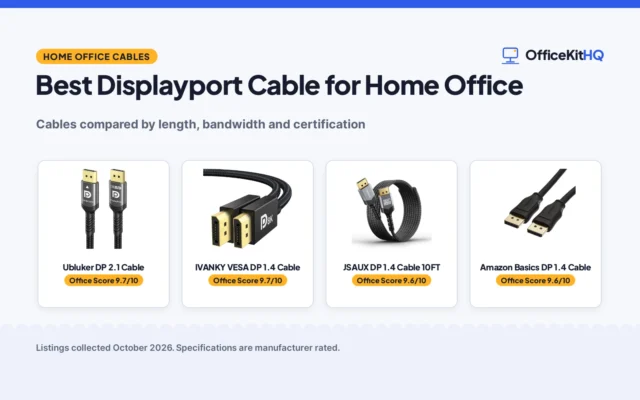
See the best DisplayPort cable for a home office, the best 8K DisplayPort cable, the best USB-C to DisplayPort cable, the best DisplayPort splitter for 3 monitors, the best docking station for dual 4K monitors, and the best cable management for a monitor arm.