The call starts in a few minutes, the laptop runs everything through a hub on the desk, and the monitor on the arm stays dark while the laptop screen does all the work. The spare cable in the drawer has a wide connector with a clipped corner, and the monitor has a matching socket on the back. That cable is a DisplayPort cable, and here is how to use displayport cable: plug each end into a DisplayPort socket, pick the DisplayPort input on the monitor, and set the screen to mirror or extend in the computer display settings.
OfficeKitHQ earns a commission when you buy through links on this page, at no extra cost to you. As an Amazon Associate I earn from qualifying purchases. Affiliate disclosure.
The quick answer
Find the DisplayPort socket on the computer and on the monitor: it looks like a wide rectangle with a clipped corner, and it is not the same shape as the HDMI socket next to it. Push the cable in until the latch clicks, press the release button on the plug before you pull it out, and pick the DisplayPort input on the monitor menu. If the picture stays on the laptop screen only, open the display settings and pick mirror or extend.
How to use displayport cable step by step
Step 1: Find the DisplayPort sockets
Look at the back of the monitor and the side or back of the computer for a socket shaped like a wide rectangle with a clipped corner. That is the DisplayPort socket, and it sits near the HDMI socket on many monitors and graphics cards, so check the shape before you push anything in. A laptop with a DisplayPort socket has the same shape on the side, and a docking station with DisplayPort sockets works the same way: the cable runs from the dock to the monitor. If the computer has a USB-C port only, a DisplayPort cable will not plug in, and the connection needs a USB-C to DisplayPort cable instead.
Step 2: Match the cable to the monitor
Match the cable version to what the monitor runs. A DisplayPort 1.2 cable runs 4K@60Hz and 1440p@144Hz, a DisplayPort 1.4 cable runs 8K@60Hz and 4K@144Hz, and a DisplayPort 2.1 cable runs 16K@60Hz and 8K@240Hz, with the bandwidth the table below shows. Cables stay backward compatible, so a DisplayPort 2.1 cable works on a DisplayPort 1.4 monitor at the speeds that monitor supports. Pick a length from 6FT, 6.6FT and 10 Feet, and leave slack so the cable does not pull tight across the desk. For the version names and connector shapes, see DisplayPort cable types.
| Cable version | Bandwidth | What it runs |
|---|---|---|
| DisplayPort 1.2 | 21.6Gbps | 4K@60Hz, 1440p@144Hz |
| DisplayPort 1.4 | 32.4Gbps | 8K@60Hz, 4K@144Hz |
| DisplayPort 2.1 DP54 | 54Gbps | 8K@165Hz, 4K@500Hz |
| DisplayPort 2.1 DP80 | 80Gbps | 16K@60Hz, 8K@240Hz, 4K@540Hz |
The figures in the table come from maker specs, so check the version on the cable before you buy.
Step 3: Plug the cable in
Push the plug straight into the socket until the latch clicks. Some plugs have a latch with a release button on top, and some have no latch at all, so check the plug before you pull it out: press the release button first on a latched plug, and pull a latch-free plug straight out. The gold-plated connectors and foil and braid shielding keep the signal steady, and a nylon braided jacket bends without kinking. Route the cable behind the monitor and the desk so it does not snag when the chair moves.
Step 4: Pick the input and the screen mode
Turn the monitor on and open the monitor menu to pick the DisplayPort input, shown as DP or DisplayPort. Then open the display settings on the computer and pick mirror mode to show the same picture on each screen, or extend mode to stretch the desktop across the screens. A docking station setup works the same way: plug the cable into the dock, then pick the input and the screen mode. See docking station setup for the dock steps.
Step 5: Sort out a blank screen
If the monitor stays dark, push each plug in again until the latch clicks, and check that the monitor input is set to DisplayPort. Swap the cable ends around: the plug that went into the computer goes into the monitor, and the other plug goes into the computer. If the picture still does not show, try a different DisplayPort socket on the computer or the monitor, and check the display settings for another screen. A cable with a cut jacket or a bent pin belongs in the bin, and DisplayPort cable repair covers when a cable is worth keeping.
FAQ
Does a DisplayPort cable work with a laptop?
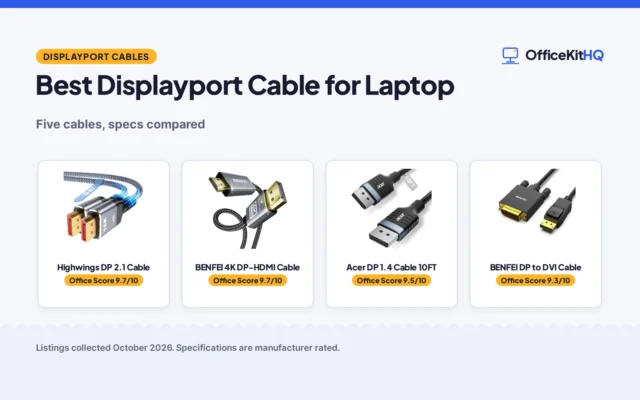
Yes, when the laptop has a DisplayPort socket or a dock with a DisplayPort socket. The cable runs from the laptop or the dock to the monitor, and you pick the DisplayPort input and the screen mode the same way. See the best DisplayPort cables for laptops for cables that suit a laptop desk.
What resolution can a DisplayPort cable run?
It depends on the cable version: DisplayPort 1.2 runs 4K@60Hz and 1440p@144Hz, DisplayPort 1.4 runs 8K@60Hz and 4K@144Hz, and DisplayPort 2.1 runs 16K@60Hz and 8K@240Hz. Check the version on the cable against the resolution and refresh rate of your monitor.
Do DisplayPort cables carry sound?
Yes. The cables pass uncompressed digital 7.1, 5.1 or 2 channel audio to the monitor, and some pass 32-bit audio as well. If the sound still comes from the laptop, pick the monitor as the sound output in the computer settings.
How long can a DisplayPort cable be?
These cables come in 6FT, 6.6FT, 9.8ft and 10 Feet lengths. Measure the run from the computer to the monitor and pick a length with slack, so the cable does not pull tight.
More for your workspace
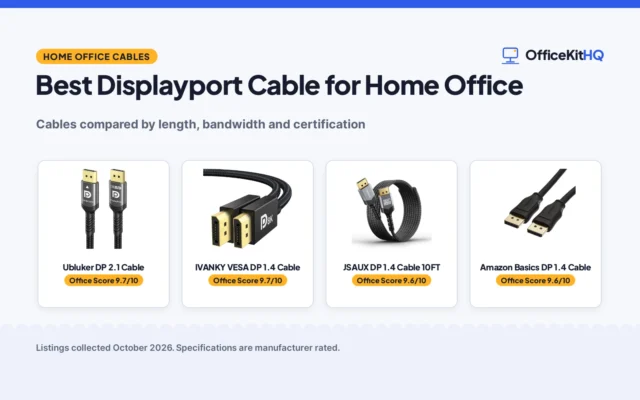
See the best DisplayPort cables for home office, the DisplayPort cable types, the dual monitor setup and the docking station setup.