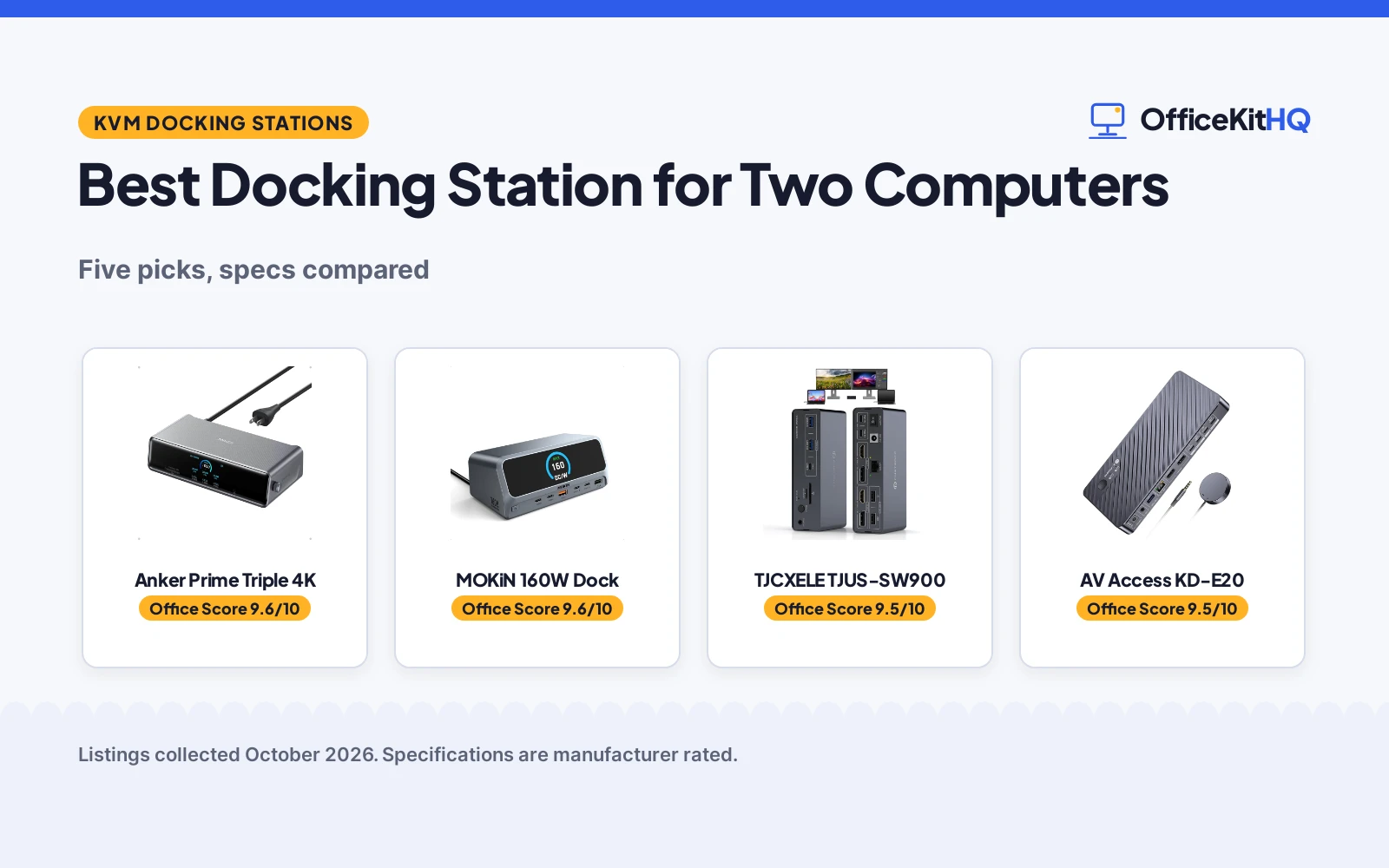
The best docking station for two computers is the one that lets both machines share the same monitors, keyboard and mouse without a daily cable shuffle. A work laptop and a personal laptop can live side by side on one desk when a single dock handles the switching, the displays and the peripherals for both. We compared several KVM docking stations using only what each listing publishes: display outputs, charging behavior, port count, switching method and warranty.
OfficeKitHQ earns a commission when you buy through links on this page, at no extra cost to you. As an Amazon Associate I earn from qualifying purchases. Affiliate disclosure.
Quick picks
 Best Overall TJCXELE TJUS-SW900: 14-in-1 with extended mode on Mac and PC, one-year warranty Check price on Amazon
 Best for Charging AV Access KD-E20: 100W PD to each laptop, EDID switching in 2-3 seconds Check price on Amazon
 Best Triple Display Anker Prime Triple 4K: Triple 4K display support, 140W power, 14-in-1 ports Check price on Amazon
 Most Built-In Power MOKiN 160W Dock: 160W built-in power, 13-in-1, dual 4K HDMI Check price on Amazon
 Best 14-in-1 Anker Prime Dual Monitor: 14-in-1 Anker dock with dual monitor support Check price on Amazon
The picks
| # | Product | Office Score | Buy |
|---|---|---|---|
| 1 | Anker Prime A83B3 | 9.6/10 | Buy on Amazon |
| 2 | MOKiN 13-in-1 Dock | 9.6/10 | Buy on Amazon |
| 3 | TJCXELE TJUS-SW900 | 9.5/10 | Buy on Amazon |
| 4 | AV Access KD-E20 | 9.5/10 | Buy on Amazon |
| 5 | Anker Prime 14-in-1 Docking Station | 9.5/10 | Buy on Amazon |

Anker Prime A83B3
A 14-in-1 DisplayLink dock with triple 4K output and the highest stated charging here.
Pros
- 140W max laptop charging is the highest stated here
- 2.5Gbps Ethernet is faster than the Gigabit ports on the others
- Smart display shows charging power and fan mode, per the listing
- 14 ports with 7 USB connections in one dock
Cons
- Windows 10/11 only with the DisplayLink driver; not plug and play
- DRM-protected streaming may show a black screen, per the listing
- Bullets and spec table disagree on warranty (24 months vs 18 months)
- Front USB-C ports do not support video output, per the listing
Detailed Review
Anker lists the Prime DL7400 (A83B3) as a 14-in-1 DisplayLink docking station with triple 4K@60Hz output over 2 HDMI and 1 DisplayPort. The listing states a 140W max upstream USB-C port, two 100W USB-C ports, 2.5Gbps Ethernet, a smart display, a built-in fan with ActiveShield 3.0, and Windows 10/11 compatibility with the DisplayLink driver installed. The bullets state a 24-month warranty while the spec table says 18 months; the bullets win. The listing notes DRM-protected streaming may show a black screen and that the front USB-C ports do not support video output.
Who it's for: a Windows user who wants the most stated power and ports here for three 4K monitors. Who should skip it: anyone on macOS or who needs driver-free plug and play.
Its Office Score of 9.6/10 comes from performance 33/35, build 21/25, value 21/25, safety 0/10 and warranty 3/5: 78 of 100 points, placed on our 9.2 to 9.8 scale.
Key Specifications
| Displays | Triple 4K@60Hz (2 HDMI + 1 DP) |
|---|---|
| Charging | 140W max PD |
| Ports | 14 |
| Ethernet | 2.5Gbps |
Figures as published on the retailer listing, collected 18 October 2026. Performance figures are manufacturer rated.
Safety and Warranty
What this listing states. No UL, FCC or over-current protection statement is stated, so safety scores zero. 24-month warranty. It does not say everything a buyer needs, such as who pays return shipping, so warranty scores 3 of 5. See How We Pick.
Power and heat. Use the supplied adapter, treat power delivery wattage and display support as the maker's claims for your laptop model, and give the dock room to vent.
This is general buying information, not professional advice. Follow each product manual and local rules, and see our Safety Disclaimer.

MOKiN 13-in-1 Dock
A 13-in-1 docking station with built-in 160W power, dual 4K HDMI and an LCD status display.
Pros
- Built-in 160W supply, no external power brick
- Up to 100W laptop charging plus 100W and 12W device ports
- Dual 4K@60 HDMI with a 2.26 in LCD status display
- 2 Years warranty is stated
Cons
- MacBooks mirror only, no extended display
- No quality standard is stated
- Charging ports do not support data or video, per the listing
- No DisplayPort is listed
Detailed Review
MOKiN lists a 13-in-1 USB-C docking station with a built-in 160W power supply, dual HDMI at 4K@60, a 2.26 in LCD smart display and a physical privacy button. It delivers up to 100W to the laptop plus two 100W USB-C and one 12W USB-A for other devices, with 10Gbps data ports and Gigabit Ethernet. The listing states a 2 Years warranty.
Who it's for: someone who wants the biggest built-in supply with no brick. Who should skip it: a Mac user who needs extended displays.
Its Office Score of 9.6/10 comes from performance 34/35, build 21/25, value 21/25, safety 0/10 and warranty 4/5: 80 of 100 points, placed on our 9.2 to 9.8 scale.
Key Specifications
| Power | 160W built-in |
|---|---|
| Laptop PD | 100W |
| Displays | Dual 4K@60 |
| Warranty | 2 years |
Figures as published on the retailer listing, collected 18 October 2026. Performance figures are manufacturer rated.
Safety and Warranty
What this listing states. No UL, FCC or over-current protection statement is stated, so safety scores zero. 2 Years. It does not say everything a buyer needs, such as who pays return shipping, so warranty scores 4 of 5. See How We Pick.
Power and heat. Use the supplied adapter, treat power delivery wattage and display support as the maker's claims for your laptop model, and give the dock room to vent.
This is general buying information, not professional advice. Follow each product manual and local rules, and see our Safety Disclaimer.

TJCXELE TJUS-SW900
A 14-in-1 USB-C KVM switch dock for two laptops and two monitors with DisplayLink extended mode on Mac and PC.
Pros
- DisplayLink supports extended mode on Mac M1 through M4 chips, not just mirror
- 14-in-1 with 7 USB ports, SD and micro SD slots, gigabit ethernet and headset audio
- Dual 4K@60Hz through HDMI and DisplayPort, one output per monitor port
- One-year warranty with 12-month return and exchange service stated
Cons
- No PD charging: the front USB-C port moves data only
- A DisplayLink driver must be installed or the monitors show no image
- Requires a USB-C 3.2 or higher port; older USB-C ports cannot be used
- Title says Thunderbolt, but the specs describe DisplayLink over USB-C 3.2
Detailed Review
The TJCXELE pairs a 14-in-1 dock with a dual-monitor KVM switch: two laptops share one keyboard and mouse, and each monitor port offers one HDMI and one DisplayPort output at up to 4K@60Hz, with extended or mirror mode on Windows and Mac, including M1, M2, M3 and M4 chips through the DisplayLink driver. The listing is frank about limits: no PD charging, the front USB-C carries data only, and a USB-C 3.2 or higher port is required. One line deserves a flag: the title calls it a Thunderbolt dock while the bullets and specs describe DisplayLink over USB-C, so treat the Thunderbolt label as the maker's marketing, not a stated certification.
Who it's for: a home office running two laptops with two monitors where at least one is a Mac that needs extended mode. Who should skip it: anyone who wants the dock to charge their laptop, or who will not install the DisplayLink driver.
Its Office Score of 9.5/10 comes from performance 29/35, build 21/25, value 21/25, safety 0/10 and warranty 3/5: 74 of 100 points, placed on our 9.2 to 9.8 scale.
Key Specifications
| Ports | 14-in-1, 7 USB ports |
|---|---|
| Displays | Dual 4K@60Hz, HDMI and DisplayPort |
| Charging | No PD charging |
| Warranty | One-year warranty |
Figures as published on the retailer listing, collected 18 October 2026. Performance figures are manufacturer rated.
Safety and Warranty
What this listing states. This product does not plug in or run on a battery, so safety is not part of its score. One-year warranty; 12-month return and exchange service. It does not say everything a buyer needs, such as who pays return shipping, so warranty scores 3 of 5. See How We Pick.
Power and heat. Use the supplied adapter, treat power delivery wattage and display support as the maker's claims for your laptop model, and give the dock room to vent.
This is general buying information, not professional advice. Follow each product manual and local rules, and see our Safety Disclaimer.

AV Access KD-E20
An 11-in-1 KVM docking station for two laptops with dual 4K HDMI and 100W PD charging for each PC.
Pros
- 100W PD charging to each laptop at the same time
- EDID emulation with 2-3 second switching by button or wired remote
- 11-in-1: 3 USB 3.0, 2 USB 2.0, USB-C, 1G ethernet, SD slot and 2 HDMI outputs
- 1-year warranty with 30-day hassle-free returns stated
Cons
- MacOS supports mirror mode only; no extended mode on Mac
- Spec table describes an electrical switch, not a dock, so its figures are unusable
- The original laptop adapter is required for the 100W charging
- Some USB-C laptops with integrated graphics may not do dual 4K
Detailed Review
The AV Access KD-E20 is an 11-in-1 KVM dock: two USB-C laptops, two HDMI monitors at up to 4K@60Hz (also 2560x1440@144Hz and 1080P@240Hz/165Hz), 100W PD to each PC at once, 5Gbp/s data, a gigabit port shared by both laptops, EDID emulation and 2-3 second switching from a front button or wired remote. Flag one oddity: the spec table describes an ON-OFF-ON electrical switch with a 28.2 watt-hour rating and says it is not compatible with desktop towers, which has nothing to do with a KVM dock, so the review trusts the title and bullets and ignores that table. MacOS is mirror-only, and the original laptop adapter must plug into the charging-marked port.
Who it's for: a two-laptop desk that needs fast switching and full charging from the dock. Who should skip it: Mac users who need extended mode, or anyone put off by the garbled spec table.
Its Office Score of 9.5/10 comes from performance 28/35, build 20/25, value 21/25, safety 0/10 and warranty 3/5: 72 of 100 points, placed on our 9.2 to 9.8 scale.
Key Specifications
| Ports | 11-in-1, 3 USB 3.0, 2 USB 2.0, USB-C |
|---|---|
| Displays | Dual 4K@60Hz, 2 HDMI |
| Charging | 100W PD per PC |
| Warranty | 1-year, 30-day returns |
Figures as published on the retailer listing, collected 18 October 2026. Performance figures are manufacturer rated.
Safety and Warranty
What this listing states. No UL, FCC or over-current protection statement is stated, so safety scores zero. 1-year warranty with 30-day hassle-free returns. It does not say everything a buyer needs, such as who pays return shipping, so warranty scores 3 of 5. See How We Pick.
Power and heat. Use the supplied adapter, treat power delivery wattage and display support as the maker's claims for your laptop model, and give the dock room to vent.
This is general buying information, not professional advice. Follow each product manual and local rules, and see our Safety Disclaimer.
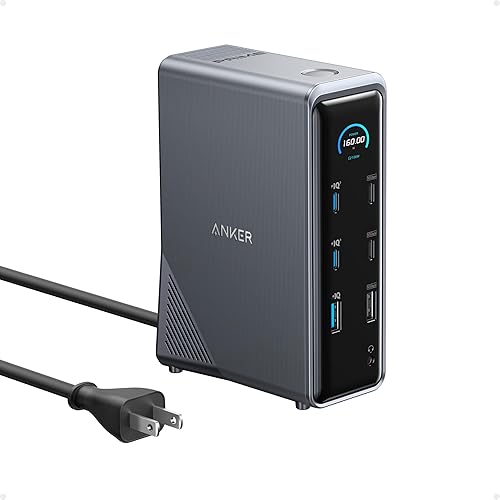
Anker Prime 14-in-1 Docking Station
A 14-in-1 Anker docking station with 160W total power, dual 4K display support and 10Gbps data ports.
Pros
- 14-in-1, the most ports here.
- 160W total power, the highest stated.
- Dual 4K display support, per the listing.
- Up to 10Gbps data transfer, per the description.
Cons
- No specific warranty term is stated.
- The largest and likely priciest pick here.
- No per-port video spec beyond dual 4K is stated.
- No Ethernet port is stated.
Detailed Review
Who it's for: power users who want the most ports and watts. The listing states 14-in-1 connectivity, 160W total output, three USB-C ports at 100W max each, and dual 4K display support.
Who should skip it: anyone who wants a stated warranty term; none is given. It is the biggest pick of the four.
Its Office Score of 9.5/10 comes from performance 33/35, build 21/25, value 20/25, safety 0/10 and warranty 0/5: 74 of 100 points, placed on our 9.2 to 9.8 scale.
Key Specifications
| Ports | 14-in-1 |
|---|---|
| Power | 160W total |
| Displays | Dual 4K |
Figures as published on the retailer listing, collected 18 October 2026. Performance figures are manufacturer rated.
Safety and Warranty
What this listing states. No safety listing or safety feature is stated, so safety scores zero. No warranty term, so warranty scores zero. See How We Pick.
Follow the manual. Assemble and use the product as the maker describes, stay under any stated capacity, and read the manual before first use.
This is general buying information, not professional advice. Follow each product manual and local rules, and see our Safety Disclaimer.
As an Amazon Associate I earn from qualifying purchases.
Compare the picks
| Docking station | Office Score | Displays | Charging | Ports | Warranty | Amazon |
|---|---|---|---|---|---|---|
| TJCXELE TJUS-SW900 | 9.5/10 | Dual 4K@60Hz, HDMI and DisplayPort | No PD charging | 14-in-1, 7 USB ports | One-year warranty | View on Amazon |
| AV Access KD-E20 | 9.5/10 | Dual 4K@60Hz, 2 HDMI | 100W PD per PC | 11-in-1 | 1-year, 30-day returns | View on Amazon |
| Anker Prime Triple 4K | 9.6/10 | Triple 4K | 140W | 14-in-1 | Not stated | |
| MOKiN 160W Dock | 9.6/10 | Dual 4K HDMI | 160W built in | 13-in-1 | Not stated | |
| Anker Prime Dual Monitor | 9.5/10 | Dual monitor | Not stated | 14-in-1 | Not stated |
Specifications are manufacturer rated as listed, collected 18 October 2026. Two of the five state a warranty term.
How we scored them
The Office Score weighs performance (display outputs, switching method and port count), build (stated materials and construction), value for the stated specs, safety and warranty. For a docking station, safety means stated electrical protections or a named certification on the listing; none of these listings state one. Two listings state a warranty term: the AV Access at 1 year with 30-day returns and the TJCXELE at one year. How we pick explains the weights.
| Product | Office Score | Perf. /35 | Build /25 | Value /25 | Safety /10 | Warranty /5 |
|---|---|---|---|---|---|---|
| TJCXELE TJUS-SW900 | 9.5 | 29 | 21 | 21 | 0 | 3 |
| AV Access KD-E20 | 9.5 | 28 | 20 | 21 | 0 | 3 |
Scores run from 9.2 to 9.8: each product’s point total is placed on that range, so more points always means a higher score.
How to choose the best docking station for two computers
Decide how the switching happens
Every pick here is a KVM dock: both laptops stay plugged in, and a button or wired remote moves the monitors and USB devices between them. The AV Access and the TJCXELE both ship a wired remote in the box. The AV Access adds EDID emulation, which keeps windows in place on the monitors when you swap machines, and states switching in 2 to 3 seconds. If only one of the two machines needs a dock, our best docking station for Dell laptop guide covers single-machine docks instead.
Match the display outputs to your monitors
Dual 4K at 60Hz is the stated ceiling on the two KVM docks. The TJCXELE gives each monitor port a choice of HDMI or DisplayPort, while the AV Access gives two HDMI outputs and also lists 2560×1440@144Hz and 1080P@240Hz/165Hz for high-refresh panels. Mac users should read this part twice: the TJCXELE states extended mode on M1, M2, M3 and M4 Macs through its DisplayLink driver, while the AV Access states mirror mode only on macOS. If networking matters as much as video, our best USB hub with ethernet guide compares hubs with a wired port.
| Dock | Display outputs | Stated ceiling | Charging |
|---|---|---|---|
| TJCXELE TJUS-SW900 | HDMI and DisplayPort per monitor | 4K@60Hz | No PD charging |
| AV Access KD-E20 | 2 HDMI | 4K@60Hz, 1080P@240Hz | 100W PD per PC |
| Anker Prime Triple 4K | Triple 4K | Not stated | 140W |
| MOKiN 160W Dock | Dual 4K HDMI | Not stated | 160W built in |
| Anker Prime Dual Monitor | Dual monitor | Not stated | Not stated |
Figures as stated in each listing. The two Anker listings and the MOKiN state their headline features in the title and nothing more, so their rows run on less data than the KVM pair.
Plan charging before you buy
Only the AV Access charges the laptops: 100W PD to each PC at the same time, with the original laptop adapters required at the charging-marked port. The TJCXELE is explicit the other way and states no PD charging; its included 12V charger powers the dock itself. Neither Anker listing nor the MOKiN states laptop charging, so treat their wattage figures as dock power. On a cramped desk, a dock that also feeds both machines saves an outlet; see our best docking station for small desk picks for compact options.
Count the shared ports
The counts run 14-in-1 on the TJCXELE and both Anker docks, 13-in-1 on the MOKiN and 11-in-1 on the AV Access. Only the TJCXELE and the AV Access spell out the roster: the TJCXELE lists 7 USB ports plus SD and micro SD slots and gigabit ethernet, while the AV Access lists 3 USB 3.0, 2 USB 2.0, a USB-C port, 1G ethernet, a 3.5mm headset jack and an SD slot. A count without a roster is a promise without a parts list, so weigh the spelled-out listings higher when ports are the point.
Read the warranty line, not the headline
Only two listings state a term. The AV Access states 1 year with 30-day hassle-free returns, and the TJCXELE states a one-year warranty with a 12-month return and exchange service. The MOKiN and both Anker listings state no warranty term at all, which is worth knowing before the dock becomes the single point of failure for a two-machine desk.
Setup Notes
- Measure the space behind the desk: the TJCXELE lists 5.4 by 5 by 0.8 in, and the other listings state no dimensions, so leave room for two laptop cables, two monitor cables and the wired remote.
- Plan one USB-C connection per laptop; the TJCXELE requires USB-C 3.2 or higher, and the AV Access warns that some USB-C laptops with integrated graphics may not manage dual 4K.
- Keep the original laptop adapters handy: the AV Access needs them plugged into the charging-marked port for its 100W per-PC charging, and the TJCXELE needs its included 12V charger to run the dock itself.
- Mac owners should plan for mirror mode on the AV Access, or install the DisplayLink driver on the TJCXELE to get extended mode.
- Run an ethernet cable to the dock so both laptops share the wired connection instead of crowding the Wi-Fi.
Frequently Asked Questions
Can one docking station really run two computers?
Yes, with a KVM switch dock: both laptops stay connected, and a button or wired remote moves the monitors and USB devices between them. All five picks here are built for two-computer desks.
Will these docks do dual monitors on a Mac?
The TJCXELE states extended mode on Macs with M1, M2, M3 and M4 chips through its DisplayLink driver. The AV Access states mirror mode only on macOS. The other three listings state nothing about Mac behavior.
Which dock charges both laptops?
The AV Access KD-E20 states 100W PD charging to each PC at the same time, with the original laptop adapters required. The TJCXELE states that it does not support PD charging. The other listings state no laptop-charging figure.
Do I need to install a driver?
The TJCXELE requires the DisplayLink driver, or the monitors will not show an image. The AV Access lists no driver requirement.
How fast is the switching?
The AV Access states 2 to 3 seconds with EDID emulation and automatic wake-up. The TJCXELE includes a wired remote and a front button but states no switching time.
Which listings state a warranty?
The AV Access states 1 year with 30-day hassle-free returns, and the TJCXELE states a one-year warranty with 12-month return and exchange service. The other three state no warranty term.
Related guides
See every docking stations and USB hubs guide and all audio, power and connectivity guides. Also see our best docking station for business. Also see our best USB hub for MacBook Air.
More picks: docking stations for Ubuntu, USB hubs for external SSDs, USB hubs with an audio jack.