The morning call starts with a dim webcam and a laptop running everything off one hub, while the document on screen scrolls and scrolls and the chat window hides behind it. A vertical monitor setup answers that squeeze: turn one screen to portrait, or stack two screens on a single pole, so long pages, code and documents read top to bottom instead of side to side. The steps below show how to match a screen to a mount, check the desk, and set the height.
OfficeKitHQ earns a commission when you buy through links on this page, at no extra cost to you. As an Amazon Associate I earn from qualifying purchases. Affiliate disclosure.
The quick answer
A vertical monitor setup means a screen turned to portrait orientation on a mount that rotates, or two screens stacked one above the other on a tall center pole. Start with the screen: check its size, its weight and the VESA pattern on its rear, then match those figures to a mount that lists the same size range, the same weight limit and the same VESA pattern. Then check the desk edge, because the clamp or grommet base has to fit the desk thickness the listing states. Listings in this guide fit screens from 13 to 34 in and hold up to 22 lbs per arm, with VESA 75x75mm or 100x100mm mounting holes.
Vertical monitor setup: the numbers to check
| Check | What the listings state |
|---|---|
| Screen size | 13 to 34 in |
| Weight per arm | Up to 22 lbs |
| VESA pattern | 75x75mm or 100x100mm |
| Desk thickness, C-clamp | 0.39 to 3.15 in |
| Desk thickness, grommet | 0.39 to 1.97 in |
These figures come from the listings cited in this guide. A mount that lists a smaller size range or a lower weight limit than the screen needs is the wrong mount for that screen, even when the pole looks tall enough.
Step 1: Match the screen to the mount
Look at the rear of the screen for the mounting holes and measure the distance between them: the listings in this guide use 75x75mm or 100x100mm patterns, and the mount has to list the same pattern. Weigh the screen against the limit per arm, because the listings split here: several stacked mounts hold up to 17.6 lbs per arm, while others hold up to 22 lbs per arm. Check the size range too: most stacked mounts in this guide fit two screens from 13 to 32 in, and one VIVO model fits two ultrawide screens from 13 to 34 in. A screen outside the listed size range, heavier than the listed limit, or with a different VESA pattern needs a different mount.
Step 2: Choose a single stand or a stacked dual mount
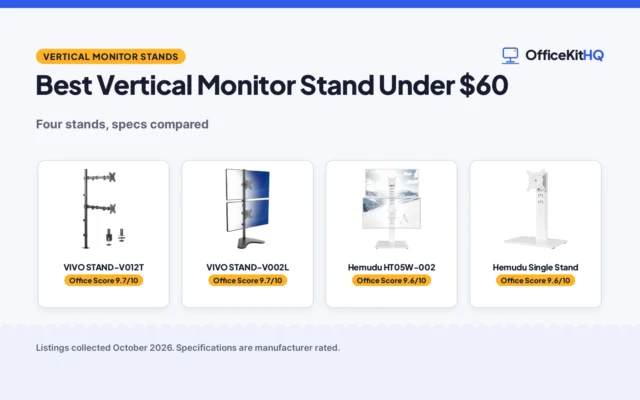
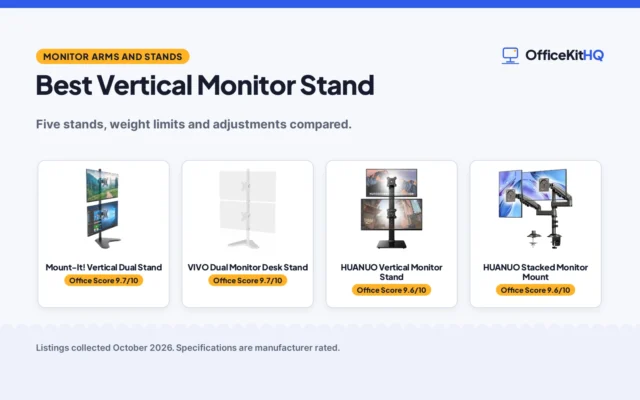
A single freestanding stand suits one screen turned to portrait: the monTEK stand (on Amazon) in this guide fits one screen from 17 to 32 in and up to 22 lbs, with a 16.5 in high bar, tilt from -45 to +45 degrees, swivel from -90 to +90 degrees and 360 degree rotation. A stacked dual mount suits two screens on one pole: the MOUNT PRO stacked mount uses a 28 in column, holds two screens up to 32 in, and each arm holds up to 17.6 lbs. The ErgoFocus stacked mount (on Amazon) uses a 31.7 in center pole and the suptek mount (on Amazon) uses a 31.5 in pole, so taller poles give more room to set two screens at different heights. For two screens, a stacked layout also frees desk space: one MOUNT PRO listing states the pole-mounted design saves over 80 percent of desktop space.
Step 3: Check the desk and the clamp
Measure the desk edge where the clamp will grip, then compare it with the thickness range the listing states. The MOUNT PRO stacked mount fits C-clamps on desks from 0.39 to 3.15 in thick and grommet mounts on desks from 0.39 to 1.97 in thick. Other listings in this guide state different limits: the VIVO mount (on Amazon) clamps desks up to 3.25 in thick, the HUANUO mount (on Amazon) fits desk thickness up to 3.14 in, and the BONTEC mount fits desk thicknesses from 0.39 to 3.35 in. A desk thicker than the listed limit needs a different mount, and a grommet mount needs a hole in the desk.
Step 4: Set the height and turn the screen
Set the lower screen first, then the upper one, leaving a small gap between the frames so the screens do not touch when they tilt. The MOUNT PRO Freelift model raises screens to a maximum height of 26.6 in from VESA center to desktop, and another MOUNT PRO model lists an 11.4 in height adjustment range. Tilt and swivel the screens to face the seat: the mounts in this guide tilt from -45 to +45 degrees on some models and from -30 to +30 degrees on others, and swivel from -90 to +90 degrees. Turn the screen to portrait with the 360 degree rotation, then change the orientation in the computer display settings so the picture matches the screen.
Step 5: Route the cables
Run the power and video cables through the channels or clips on the pole before the screens go on, so the cables do not pull when the screens tilt or turn. The monTEK stand lists integrated cable management channels, the VIVO mount lists detachable cable clips on the center pole, and the BONTEC mount lists built-in cable clips with an Allen key storage slot. Leave slack at each screen so the cable does not tug at the port when the screen rotates to portrait, and keep the power cable on a separate path from the video cable where the clips allow it. The MOUNT PRO Freelift listing states its arm is rated for 20,000 motion cycles, so route cables with room to move.
FAQ
Can any monitor turn vertical?
Only a monitor on a mount that rotates 360 degrees, with VESA 75x75mm or 100x100mm holes on its rear. Check both listings for the same pattern before buying.
How much weight can a vertical monitor mount hold?
The listings in this guide hold up to 17.6 lbs per arm on several stacked mounts and up to 22 lbs per arm on others, including the VIVO dual stacked mount and the BONTEC dual mount. Compare the screen weight with the per-arm limit.
Do I need a special desk for a stacked monitor mount?
No special desk, but the edge has to fit the clamp: the MOUNT PRO stacked mount fits C-clamps on desks from 0.39 to 3.15 in thick, and grommet mounts on desks from 0.39 to 1.97 in thick. Measure the desk edge first.
Can a stacked mount hold two 32 in screens?
Yes, when the listing states it: several stacked mounts in this guide fit two screens up to 32 in, each arm holding up to 17.6 lbs. The VIVO dual stacked mount fits two ultrawide screens up to 34 in, with each arm holding up to 22 lbs. Check both limits for each arm.
How long does assembly take?
The monTEK single stand lists 5 minutes for assembly with its manual, and the ErgoFocus stacked mount lists assembly within 15 minutes. Both listings state the hardware and instructions are included.
More for your workspace
See the monitor setup guide, the dual monitor setup guide, the best vertical monitor stands and the monitor stand size guide.