A morning video call fills the laptop screen, the chat window hides behind the shared slides, and the notes live in a notebook off to the side. A multiple computer monitor setup moves that juggle onto screens that sit side by side, so the call, the document and the inbox each hold a place of their own. The guide below walks through the parts that make it work: the mount, the ports, the cables and the layout.
OfficeKitHQ earns a commission when you buy through links on this page, at no extra cost to you. As an Amazon Associate I earn from qualifying purchases. Affiliate disclosure.
What a multiple computer monitor setup needs
A multiple computer monitor setup is a desk where two screens share one computer, each showing its own window, so work spreads across both screens instead of stacking on one. The parts are simple: two monitors with VESA mounting holes, a dual arm that holds both, a video cable for each screen, and a port on the computer for each cable. A stand lifts the screens off the desk surface and frees the space below them for a keyboard, a notebook and a coffee mug. Start with the monitors, because their size and weight decide which arm fits.
Check the monitors first
Every dual arm lists three limits: the screen size it fits, the weight each arm holds, and the VESA pattern on the rear of the monitor. The table below lists the figures from the maker listings for the arms in this guide. Measure the monitors before ordering, and check the weight on the maker label or the listing, since a screen that is too wide or too heavy for the arm can sag or drift out of place.
| Arm | Screen size | Weight per arm | VESA pattern |
|---|---|---|---|
| ErGear dual monitor stand | 17 to 33 in | 4.4 to 22 lbs | 75×75 or 100×100 |
| MOUNTUP dual monitor stand | 22 to 32 in | 4.4 to 19.8 lbs | 75×75 or 100×100 |
| Acer dual monitor arm | 17 to 32 in | 4.4 to 19.8 lbs | 75×75 or 100×100 |
| Amazon Basics dual monitor arm | 15 to 27 in | 4.4 to 15.4 lbs | 75×75 or 100×100 |
| HUANUO FlowLift Pro | 13 to 27 in | 4.4 to 15.4 lbs | 75×75 or 100×100 |
| DUMOS dual monitor mount | 13 to 32 in | 4.4 to 17.6 lbs | 75×75 or 100×100 |
| HUANUO dual monitor mount | 17 to 32 in | Up to 22 lbs | 75×75 or 100×100 |
All of the arms in the table use the same two VESA patterns, so the pattern rarely decides the purchase; size and weight do. Curved screens fit the same arms when they meet the size, weight and VESA limits, and the MOUNTUP and HUANUO listings state that their arms fit flat or curved monitors.
Check the desk and the mount
A dual arm clamps to the rear edge of the desk or bolts through a grommet hole, so the desk itself is part of the fit. The ErGear arm (on Amazon) takes a C-clamp on desks from 0.39 to 2.56 in thick and a grommet mount from 0.39 to 2.17 in, while the MOUNTUP arm fits desks from 0.39 to 2.76 in either way. The Acer arm (on Amazon) fits desktop thicknesses between 0.59 and 3.15 in and needs a grommet hole over 10mm, and the Amazon Basics arm fits desks (on Amazon) from 0.39 to 4 in with a grommet hole from 1.5 to 2.36 in. Measure the desktop thickness before ordering, and check the underside for beams or panels that block a clamp: the ErGear listing warns that the bottom of the table should be free of beams or panels that interfere with installation. The ErGear and HUANUO listings recommend wood desks, and the Acer listing states its mount is not suitable for glass or plastic surfaces.
Warranty terms differ across the listings: the Acer arm lists a 1 Year Manufacturer warranty, the DUMOS lists 2 Year Manufacturer, and the HUANUO FlowLift Pro lists 5 Year. The HUANUO dual mount listing gives setup in 10 minutes with the included tools and instructions.
Set the height and the layout
With the arm clamped on, set the height so the top of each screen sits near eye level, then set the distance so the screens sit within easy reach of the arms. The ErGear arm rises to 17.5 in above the desk and extends 17.5 in toward the user, the MOUNTUP arm rises to 16.9 in and extends to 19.5 in, and the Acer arm adjusts to 18.1 in high with extension to 21.25 in. The Amazon Basics arm extends to 20.5 in and rises to 18.25 in. Tilt, swivel and rotation fine-tune the angle: the arms list 360° rotation for landscape and portrait, tilt from +90° to -35° on the ErGear arm and the HUANUO dual mount and from -90° to +85° on the Amazon Basics arm, and swivel of 180° on the MOUNTUP and DUMOS arms. The Acer listing names these layouts: dual horizontal, horizontal and vertical, dual vertical, and cross horizontal.
Gas spring arms need tension set to the monitor weight: the Amazon Basics arm ships pre-set for 15.4 lb monitors, and the listing gives 7 turns for 13.2 lbs, 12 turns for 11 lbs, 16 turns for 8.8 lbs and 19 turns for 5.5 lbs. The ErGear listing gives 20,000 cycles and the DUMOS listing gives 25,000 cycles. For a corner desk, swing the arms toward the corner and angle the screens to face the chair, then check that the arms clear the wall on each side. A standing desk adds a raised working height, so recheck the screen height each time the desk moves.
Connect the screens and the cables
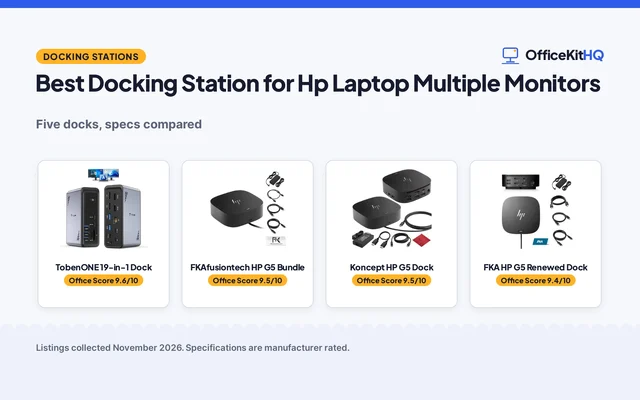
Each monitor needs its own video cable and a matching port on the computer: HDMI or DisplayPort on a desktop, or USB-C on a laptop. When the computer runs short of ports, a USB-C docking station for multiple monitors adds ports through one connection. Plug each cable in fully, then arrange the screens in the computer display settings so the order on screen matches the order on the desk. Route the cables through the arm channels or clips so they hang free of the moving joints: the MOUNTUP arm hides wires inside the arms, the Acer arm has hidden cable clips, and the Amazon Basics arm lists integrated cable management. A cable management guide for monitor arms covers clips and channels in more detail.
FAQ
What do I need for a dual monitor setup?
Two monitors with VESA mounting holes, a dual arm that fits their size and weight, a video cable for each screen, and a port on the computer for each cable. Check the VESA pattern on the rear of each monitor: the arms in this guide fit 75×75 or 100×100. A monitor stand size guide helps with the height and width.
Does a monitor arm fit any monitor?
No. The arm must fit the screen size, the weight and the VESA pattern, and the desk must take the clamp or the grommet base. As an example, the ErGear arm fits 17 to 33 in screens at 4.4 to 22 lbs per arm with VESA 75×75 or 100×100, so a screen outside those limits needs a different arm.
Can I use a dual monitor setup on a corner desk?
Yes, when the arms swing far enough to face the chair and the desk edge takes the clamp. Check the desk thickness against the arm listing, leave room for the arms to move, and route the cables so they stay clear of the wall on each side.
How do I set up a second monitor?
Mount the screen on the arm, connect its video cable to the computer, then open the display settings and arrange the screens in the order they sit on the desk. Set the screen you use most as the main display, and check that the cable sits fully in the port when a screen stays dark.
More for your workspace
See the dual monitor setup guide, the best VESA monitor stands, the best mouse pads for dual monitors and the computer desk setup guide.